Roblox Outfit Tester

Enter a Roblox username, preview the current avatar, and swap a classic shirt or pants in your browser. Free, no login, and the preview downloads as a PNG.

How to preview a Roblox outfit

Three steps. No login before the preview.

01

Enter the exact username

Type the account’s username, not its display name. Roblox lets players show a different display name, so the two can look unrelated. The tester reads that username’s public avatar and never asks for a password or account access. You can also enter a user ID. If you cannot find the avatar you expect, check the spelling and confirm that you have copied the username rather than the display name.

02

Check the current avatar and items

The left panel shows the official full-body render. Below it are the equipped classic shirt and pants and the avatar type, R6 or R15. An empty slot means no classic item is applied there, which is normal for layered-only outfits.

03

Swap a top or bottom and save

Paste a Roblox catalog link or asset ID into Replace top or Replace bottom. The right panel updates with the item on a standard blocky body. Download a 1080×1080 PNG when it looks right. To compare alternatives, change one slot at a time and save each preview; this makes it easier to see which top and bottom work together.

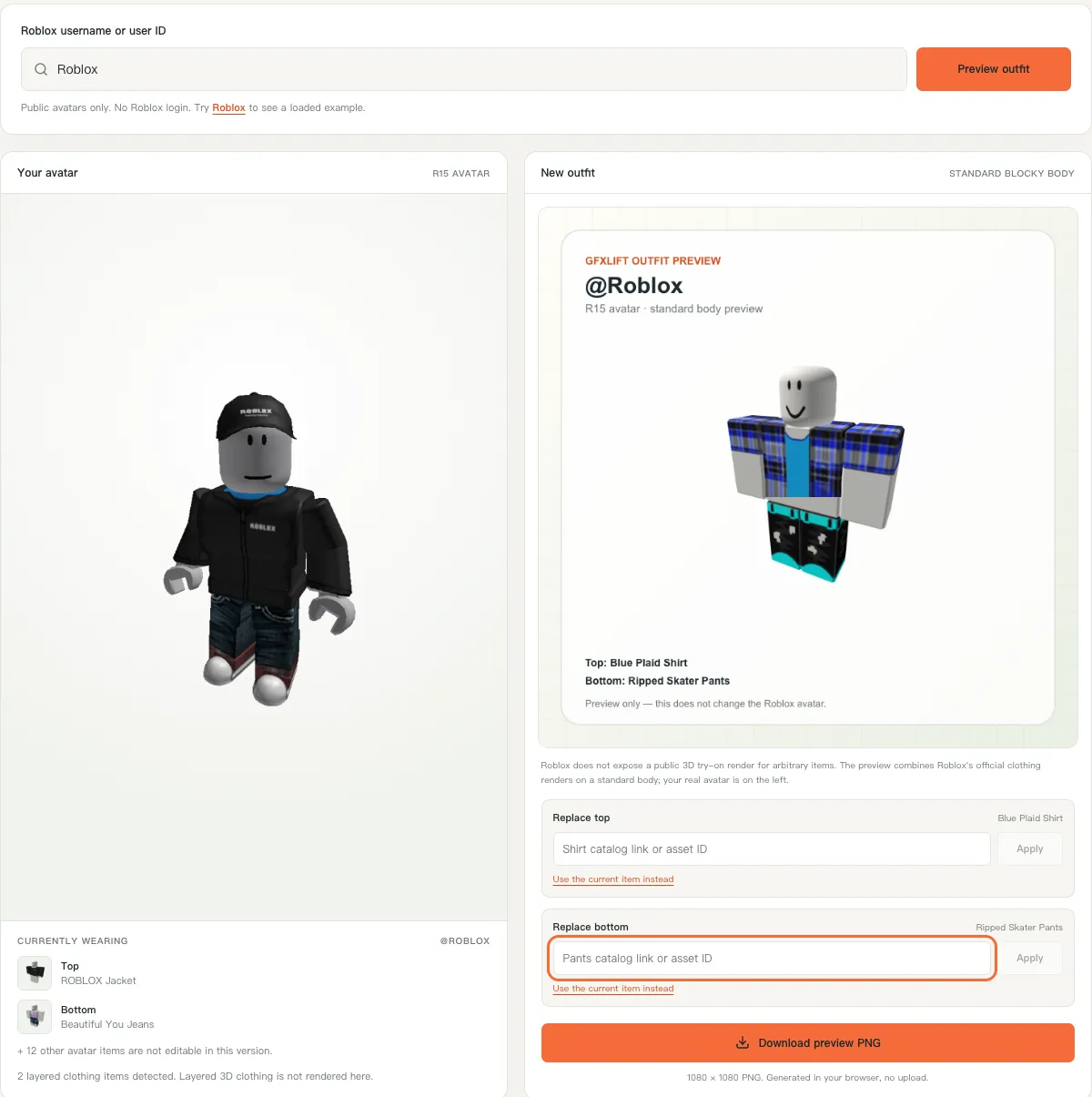
Gfxlift Roblox Outfit Tester showing a loaded avatar on the left and a swapped shirt and pants preview on the right.
The tester after loading a username and swapping the top and bottom. The left image is Roblox’s actual avatar render; the right image is a standard-body clothing preview.

What you can change — and what you can’t

Supported in this version

  • Load any public Roblox avatar by username or user ID.
  • Read the R6 or R15 type and the equipped classic Shirt (type 11) and Pants (type 12).
  • Replace the top or bottom with any public classic Shirt or Pants by catalog link or asset ID.
  • Preview both slots on a standard body and download a 1080×1080 PNG.

Not supported yet

  • Accessories, hair, faces, body colors, scales, bundles, and saved outfits.
  • Layered 3D clothing (asset types 64–72) and classic T-shirts (type 2).
  • A 3D try-on render on your exact body package. Roblox does not expose that publicly.
  • Buying, wearing, or saving the outfit to your Roblox account.

Unsupported items are rejected with a message that names the asset type. If a catalog item is rejected, check that it is a classic Shirt for the top slot or classic Pants for the bottom slot, then try its public catalog link or asset ID again. Layered clothing and classic T-shirts are different item types and cannot be substituted here.

Outfit tester vs. Roblox Avatar Editor

Gfxlift outfit tester compared with the Roblox Avatar Editor
FeatureGfxlift Outfit TesterRoblox Avatar Editor
Roblox loginNot requiredRequired
Reads someone else’s avatarYes, by usernameNo, your account only
Try an item you don’t ownYes, preview onlyTry On where available; wearing requires ownership
Changes the real avatarNoYes
Best forComparing IDs and making a PNGEquipping items, saving outfits, exact 3D result

Use the tester to plan

Use the tester to compare shirts, check an asset ID, or make a preview image before spending Robux. It works without an account, and a catalog link or a bare ID both work. For example, keep the same pants while trying two tops, then save a PNG of each combination to compare them side by side.

Use the Avatar Editor to commit

Use the Roblox Avatar Editor when you have decided. It applies the item to your real avatar, handles layered clothing and accessories, and shows the result on your body package. The tester cannot equip anything or save the outfit. Check the final combination in Roblox before buying or wearing it: the standard-body preview does not reproduce your avatar’s accessories, body colors, proportions, or custom package.

Roblox outfit tester FAQ

Straight answers before you paste an asset ID.

Is the Roblox outfit tester free?

Yes. Loading a username, swapping a classic shirt or pants, and downloading the preview PNG are free. There is no login, no watermark, and no connection to your Roblox account.

Does it work with R6 avatars?

Yes for R6 avatar data and classic clothing. The tester reads R6 and R15 avatars and supports classic Shirt and Pants items. The try-on image uses Roblox’s standard blocky render, which is closest to an R6 body. Custom packages, layered clothing, and accessories are not rendered.

Can I test outfits without owning the items?

Yes. Paste any public classic Shirt or Pants asset ID and the tester previews it. Previewing does not grant, buy, or equip the item. You still need to own it to wear it on Roblox.

Does it work on mobile?

Yes. The form, avatar panel, swap fields, and PNG download work in mobile browsers, and the layout stacks vertically. A large avatar render may take a few seconds on a slower connection.

Why does the new outfit look different from my avatar?

Roblox does not provide a public 3D try-on render for arbitrary outfits. The left panel is your actual avatar render; the right panel combines the official shirt and pants renders on a standard body. Use the Avatar Editor for the exact result on your body package.

Where can I find a clothing asset ID?

Open the public item page in the Roblox catalog and copy its link, or copy the numeric asset ID from that link. Paste it into the matching top or bottom field. Make sure the item is a classic Shirt or Pants; an ID for an accessory or layered item will not work.

Why is a clothing slot empty?

The loaded avatar may not have a classic shirt or pants equipped in that slot. Layered clothing does not fill the classic clothing fields in this tester. You can still enter a supported public item to preview a replacement on the standard body.

Does the preview change my Roblox avatar?

No. The Roblox outfit tester creates a separate preview and does not sign in to your account, purchase an item, or equip clothing. After comparing looks, use Roblox to check the item and make any changes to your actual avatar.

What is included in the downloaded image?

The download is a 1080×1080 PNG of the preview. It is useful for keeping a visual reference or comparing combinations, but it is an image rather than a saved Roblox outfit. Keep the catalog links or asset IDs if you want to find the items again later.